Odd Meter — Support
Odd Meter is a practice metronome that makes the grouping of odd meters audible and visible. The free practice set is there the moment you open it: no account, nothing to set up.

Getting started
Four steps from opening Odd Meter to hearing 7/8 as 2+2+3.
Open the meter list
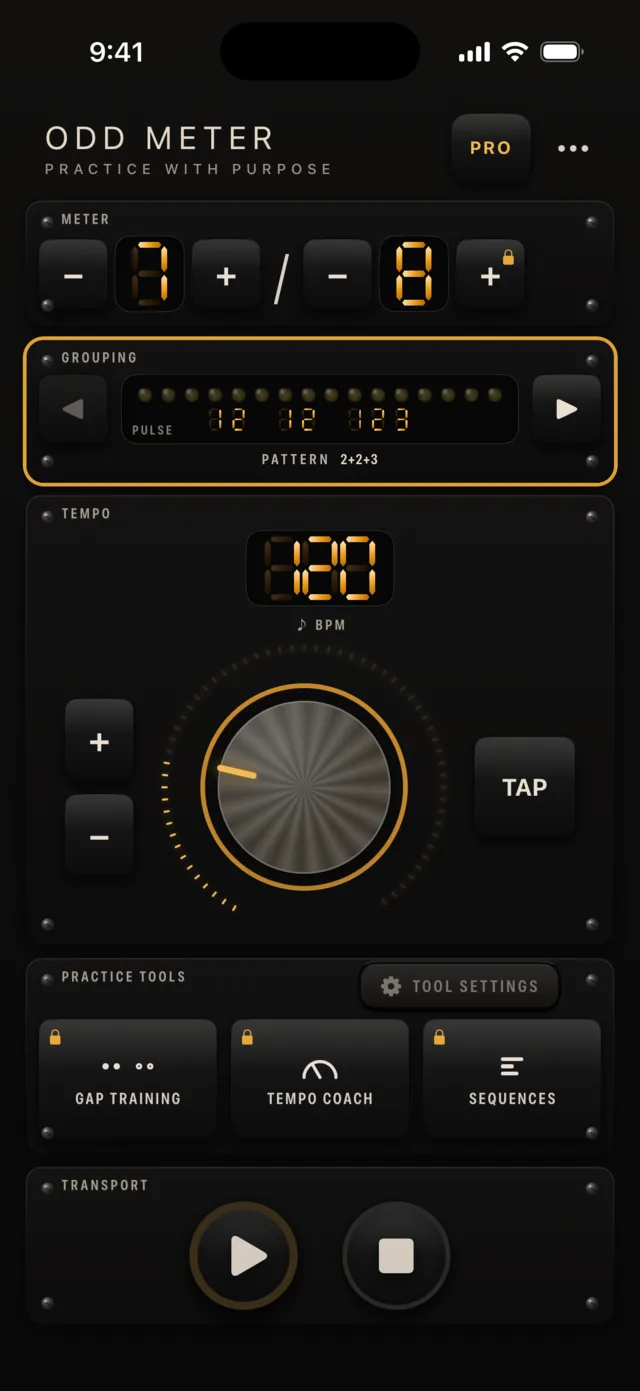
Tap the meter at the top of the screen. Odd Meter opens on a free meter, ready to play, and the list shows the nine free meters.
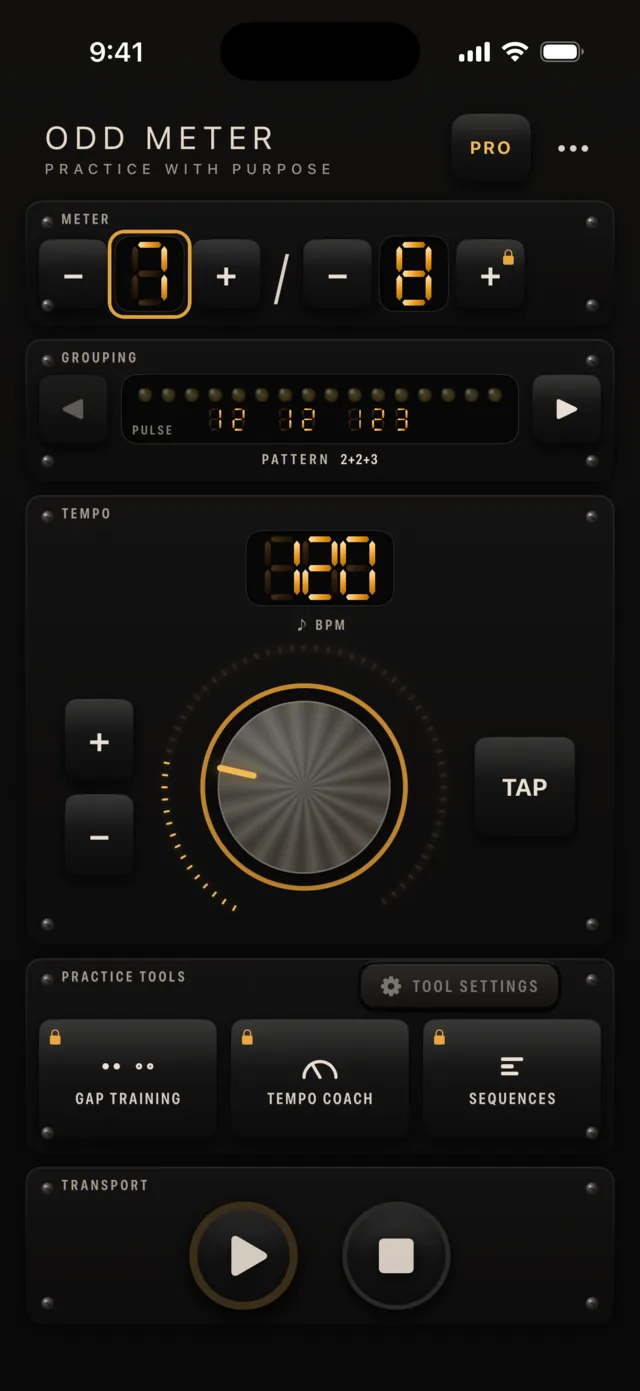
Tap the meter display. Pick a meter and a grouping
Choose one of the nine free meters, then the grouping you want to feel, such as 7/8 as 2+2+3. Tap Done when you are set. You can also step the beat count with the + and − keys beside it.
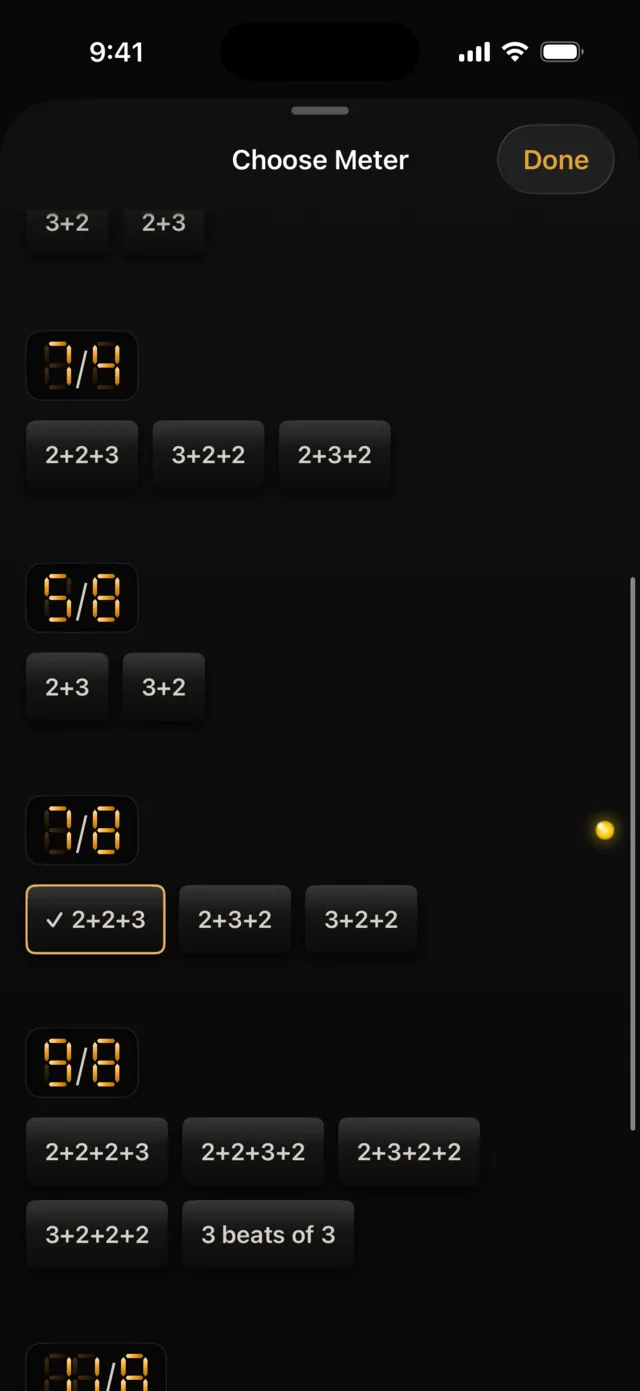
Every grouping is one tap. Set the tempo
Drag the tempo knob up or down, use the + and − keys for fine steps, or tap the TAP key in time. The number is the tempo for the note value shown beside the meter, so in 7/8 it counts eighth notes.
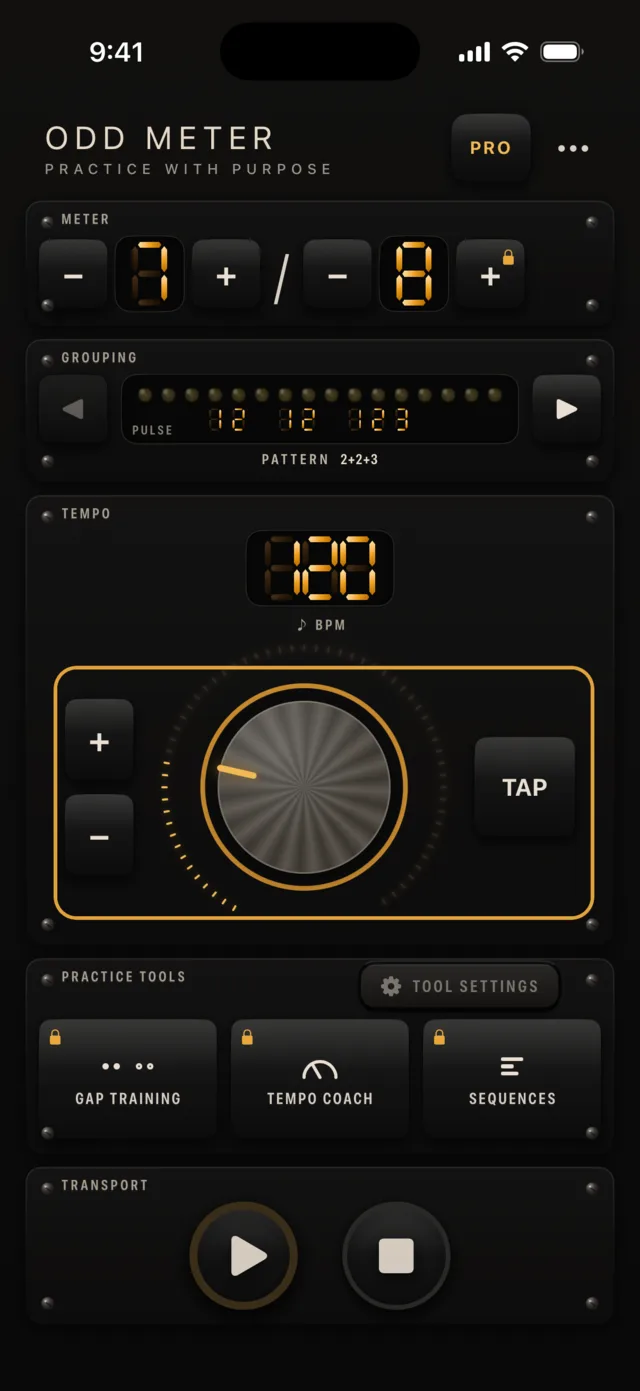
Knob, fine steps, or tap tempo. Press Play
The click marks the downbeat, the start of each group, and the ordinary pulses, and the grouped display lights the current pulse. Odd Meter reopens exactly where you left off.
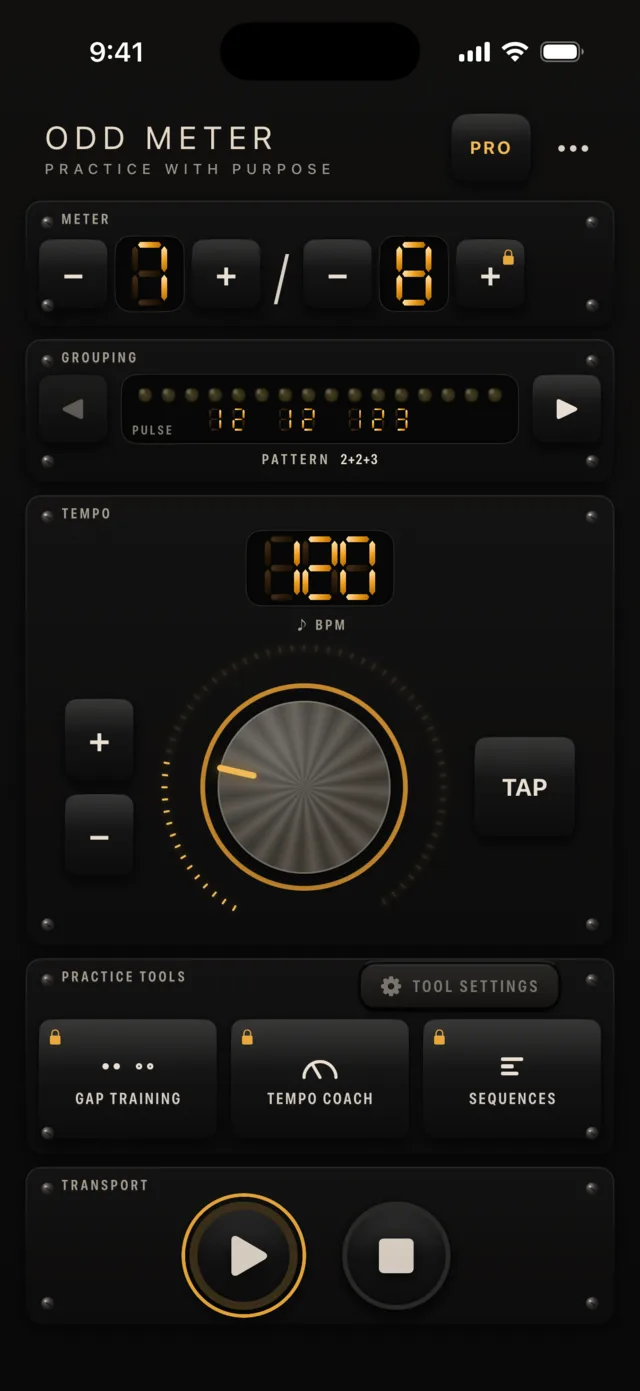
Press Play.
Free and Pro
The free app is a complete practice metronome. Odd Meter Pro adds a deeper practice system on top of it.
Free
Always
- Nine meters, each with its groupings: 4/4, 3/4, 5/4, and 7/4 on a quarter-note base, and 6/8, 5/8, 7/8, 9/8, and 11/8 on an eighth-note base
- The note-value keys switch 5/8 and 5/4, and 7/8 and 7/4
- The core metronome, the grouped beat display, tap tempo, and three click voices
- Playback with the screen locked, haptics, and appearance settings
- VoiceOver and Dynamic Type support
- Your choice of the Instrument or Classic look
Odd Meter Pro
One-time purchase
- Not a subscription: $9.99 in the US, shown in your currency in the app
- Practice tools: gap training and tempo coach
- Sequences: chain meters, built-in starters, or your own
- More meters: every beat count from 1 to 64, including 2/4 and 12/8, plus the additive-meter builder
- Any meter on /2, /4, /8, /16, or /32
- Your free practice never changes. The purchase is covered by Apple’s standard terms of use.
What Odd Meter Pro adds
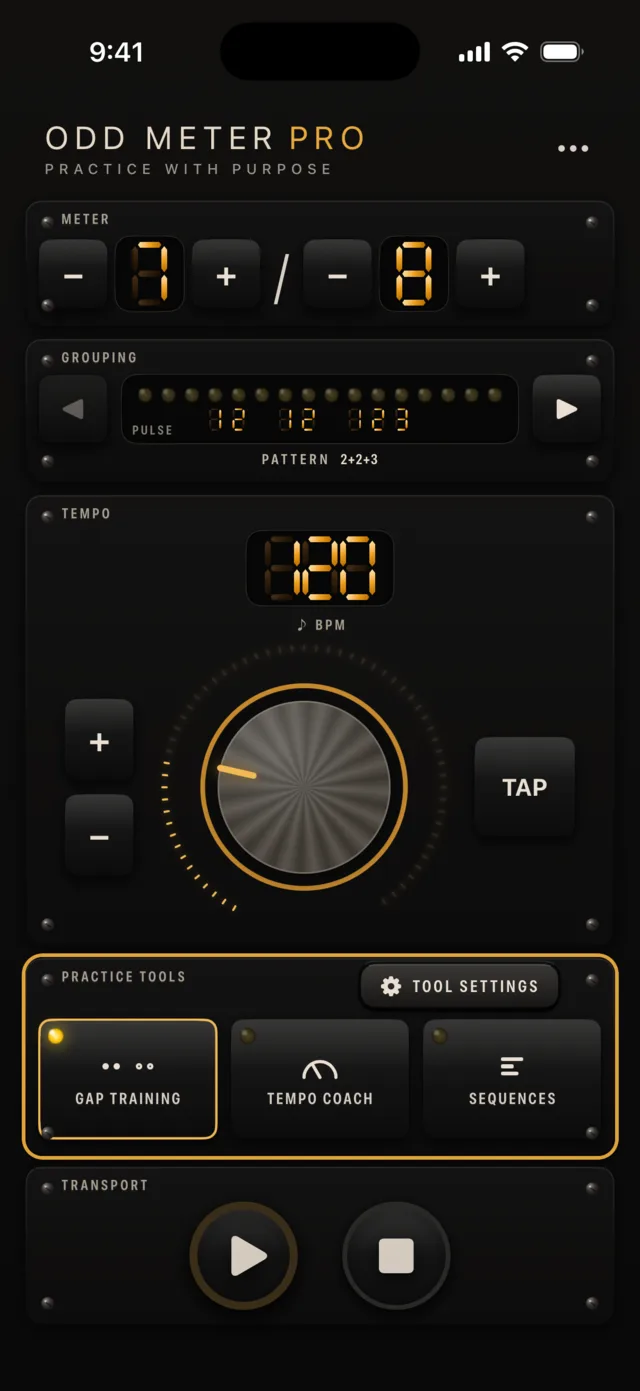
Practice tools
Gap training drops the click so you keep the time; fade it out by degrees, or play only some of the pulses. Tempo coach moves the tempo toward a target as you practice, and can return to where you started.
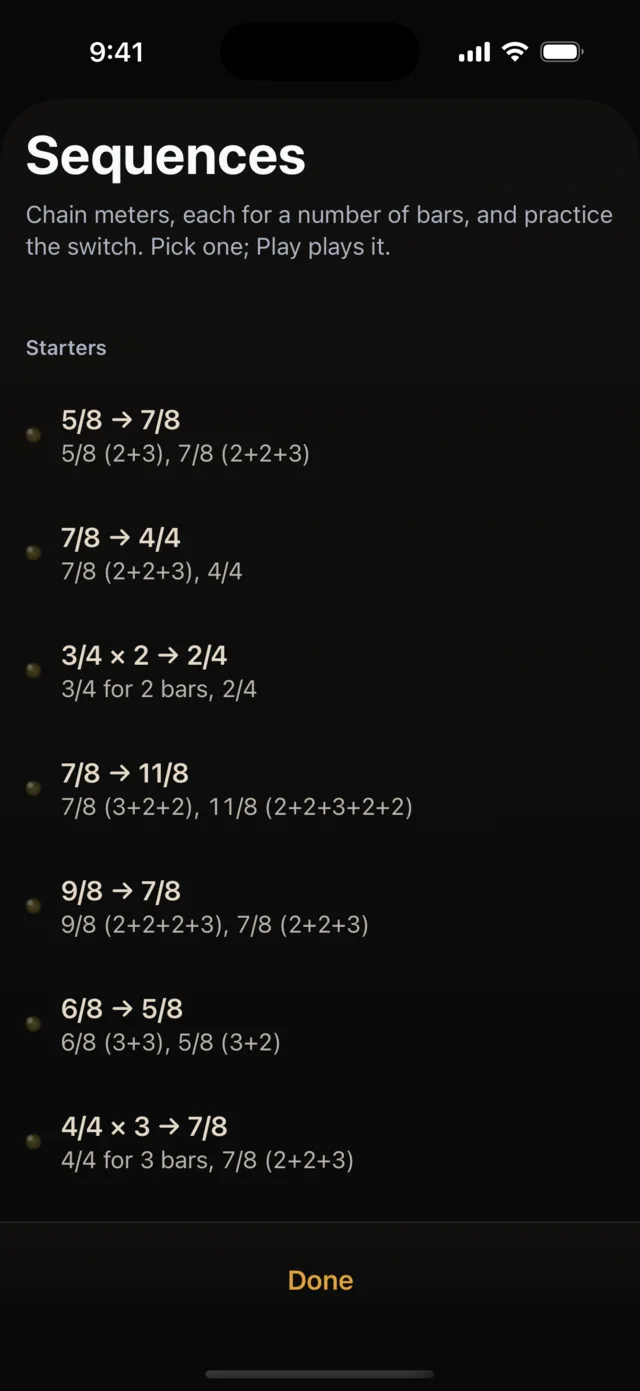
Sequences
Chain meters, each for a number of bars, and practice the switch. Start from a built-in sequence or build your own.
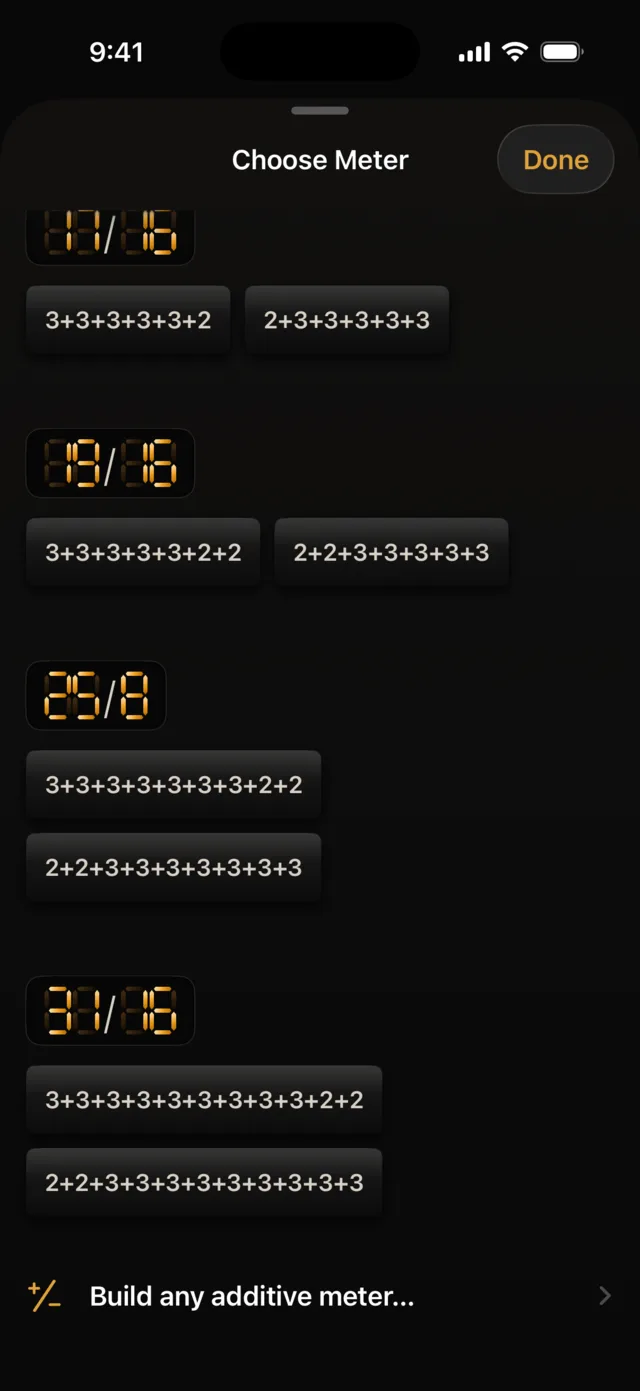
More meters and note values
Every beat count from 1 to 64 on every note value, plus the additive-meter builder for meters such as 13/8, 7/16, or 15/8.
Questions
How do I restore a purchase?
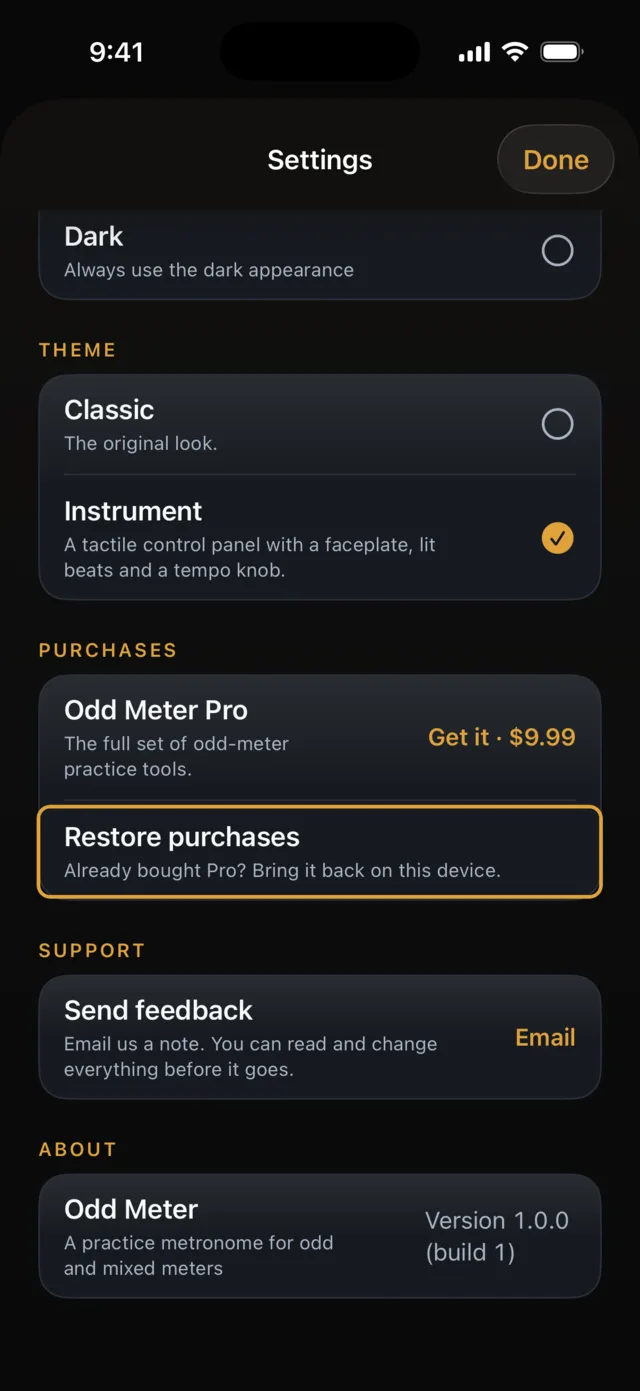
Open the menu, choose Settings, and tap Restore purchases. You can also tap Restore Purchase on the Pro screen. Use the Apple ID that made the purchase. Odd Meter Pro is a one-time purchase, so it can be restored on any device signed in to that Apple ID.
How do I switch between the Instrument and Classic look?
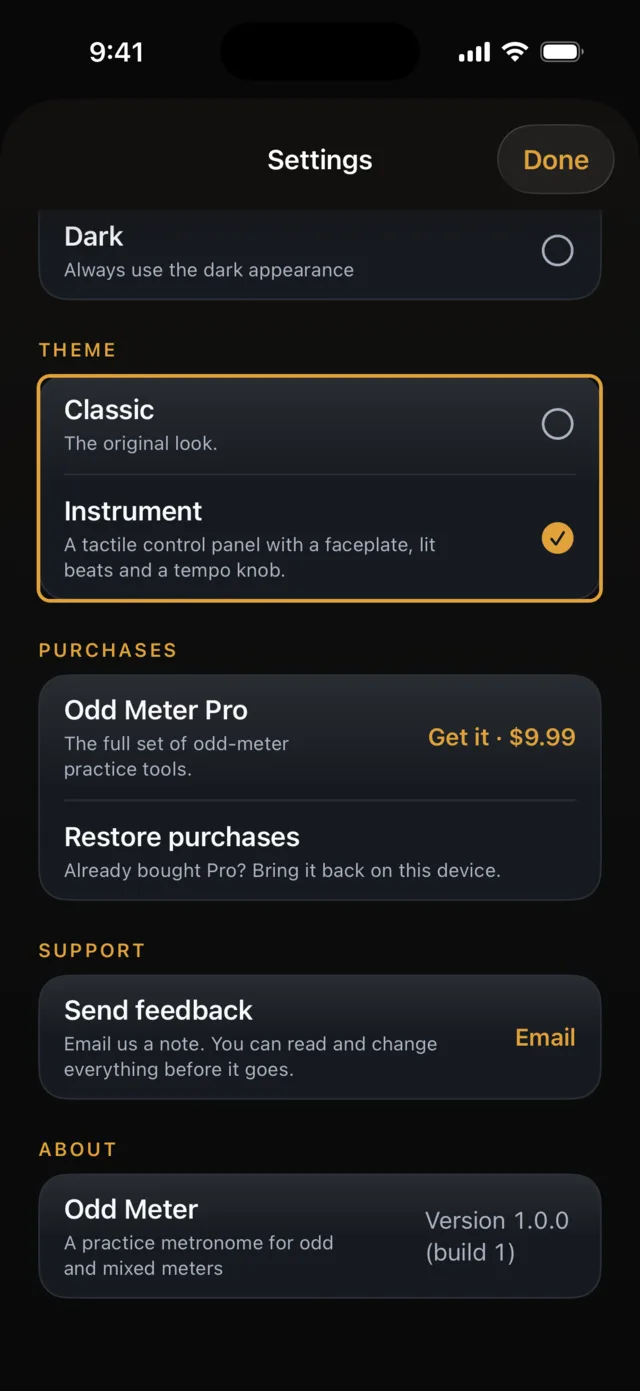
Odd Meter opens on the Instrument look. To use Classic, open the menu, choose Settings, and pick Classic under Theme. Your choice is remembered.
Why do some keys have a padlock?
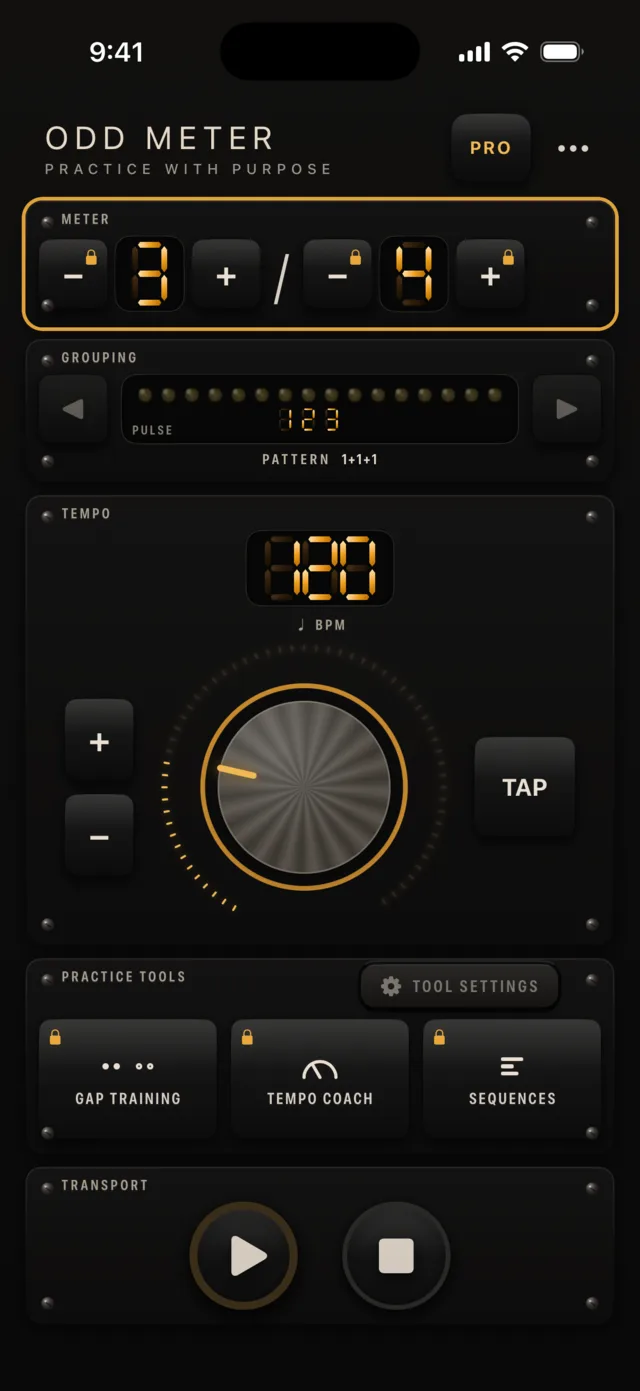
A padlock marks a key that would take you to something in Odd Meter Pro, such as a meter or note value that is not in the free set, or a practice tool. Tap it to see what Pro adds. Nothing is locked out of the free set.
How do the practice tools work?
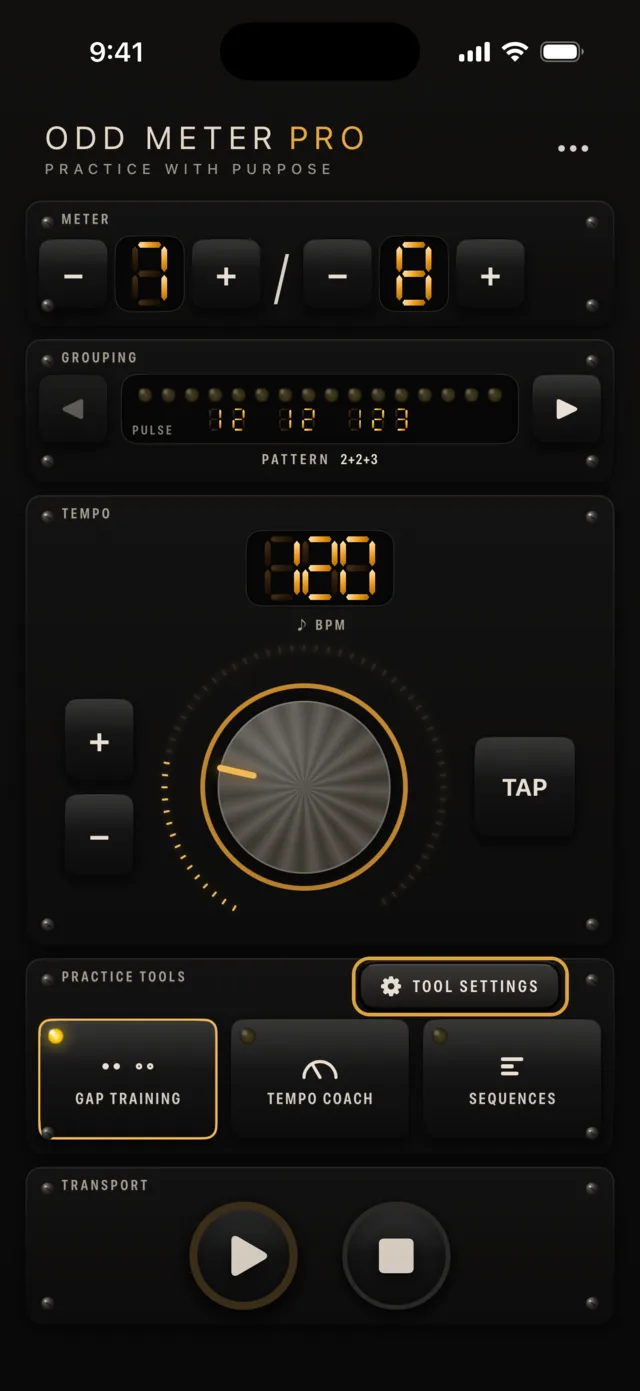
Press a tool’s key to turn it on; its settings open at once, and changes apply as you make them. Press Done to close. The lit key turns the tool off, even while you play. Only one tool is on at a time, and the other keys are locked while the metronome runs. To change a tool’s settings later, press the Tool settings key.
Can I change the grouping?
Yes. Switch groupings (such as 2+2+3 and 3+2+2) without leaving the practice screen. The click and the display change together.
Does it keep playing when my screen locks?
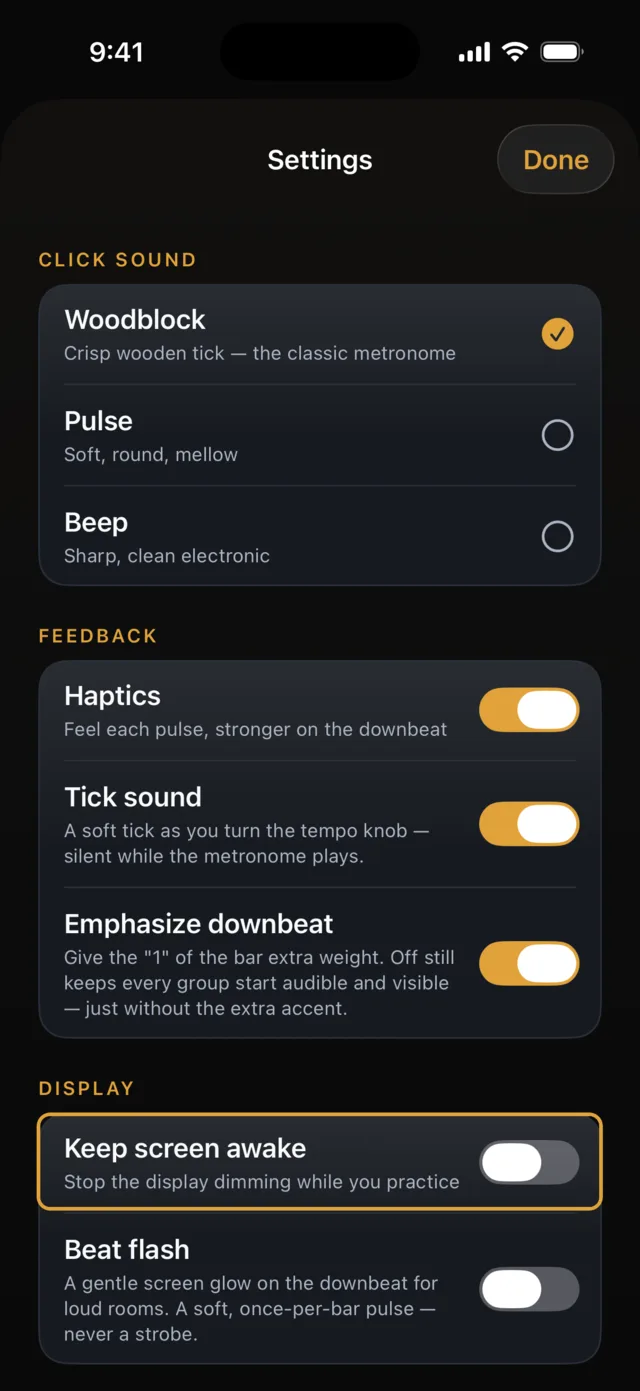
Yes. Audio continues when the screen locks, with play and pause on the lock screen. There is also an optional keep-screen-awake setting for the studio, in Settings under Display.
Can I change the sound or appearance?
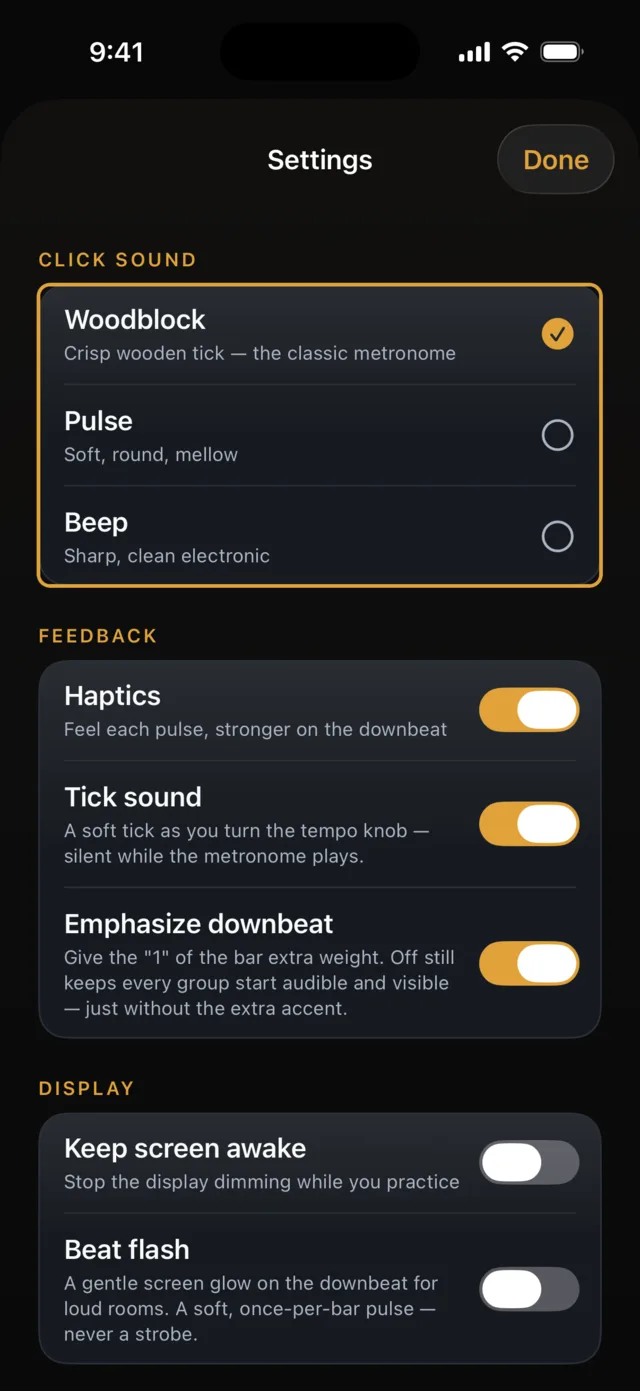
In Settings you can choose from three click voices, turn the downbeat accent on or off, set haptics, the tick sound, and the beat flash, and choose Light, Dark, or System appearance.
Accessibility
Odd Meter supports VoiceOver and Dynamic Type, uses large one-handed controls, and does not rely on color alone for the beat and grouping display. The optional downbeat flash is designed to stay well below any photosensitivity risk.
Get help
If something isn’t working, or you have a question or a suggestion, we’d like to hear from you.
In the app, open the menu, choose Settings, and tap Send feedback. It opens an email to us with details that help us look into a problem: your Odd Meter version, iOS version, device model, theme, text size, and whether Pro is unlocked. You can read and change everything before you send it.
Email support@izawalan.com